
Our readers keep the lights on and the coffee maker working hard! As an Amazon Associate, I earn from qualifying purchases.
Specs are compiled from manufacturer listings and verified buyer reviews and can change over time — please confirm the key details on the product page before buying.
Your wrist should not ache after a day at the keyboard. The right wireless ergonomic mouse fixes that by changing how your hand and forearm sit, but The “ergonomic” label covers everything from barely angled designs to true posture-correcting tools.. This guide covers seven models that reduce strain, based on published specs and patterns across thousands of owner reviews.
I’m Mohammad — the founder and writer behind Calories Fit. This guide is built by comparing the manufacturers’ published specifications and the patterns across verified customer reviews, so you get each pick’s real strengths and trade-offs instead of marketing spin.
If you are battling early signs of carpal tunnel (a wrist nerve condition causing numbness) or just want a more comfortable pointer for your desk, this article covers the best wireless ergonomic mouse options ranked by real-world performance.
Our Picks at a Glance


How To Choose The Best Wireless Ergonomic Mouse
Picking the right ergonomic mouse depends on three main decisions: the shape (vertical, standard, or trackball), how it connects to your computer, and whether you mind plugging in a cable to charge. The wrong choice can worsen wrist pain, so getting these right matters.
Vertical Angle: The First Big Decision
A vertical mouse rotates your hand into a handshake position. This keeps your forearm bones from crossing, which compresses the carpal tunnel. Look for a tilt between 20 and 62 degrees — steeper angles relieve more wrist strain but require a longer adjustment period (typically one to two weeks). An angle below 15 degrees offers only marginal ergonomic benefit.
Trackball vs. Standard Optical
A standard optical mouse requires you to move the whole device across your desk, engaging your shoulder and elbow. A trackball mouse keeps your hand stationary and uses your thumb or fingers to roll a ball — ideal if you work in a cramped space or already have shoulder pain. The catch is that a trackball demands a short learning curve (about a week) as your thumb develops the fine motor control your wrist used to do.
Battery Type Matters More Than You Think
Rechargeable mice save you money on disposable AAAs over time, but if the built-in battery dies after a couple of years, the whole mouse is trash. Models that use replaceable AAAs can keep going forever, but you pay for batteries. Check whether the battery life is measured in hours per charge or days of standby — a figure like “70 days” refers to typical office use, not 24/7 gaming.
Quick Comparison
| Model | Best For | Type | Angle | Buttons | Amazon |
|---|---|---|---|---|---|
| Logitech MX Master 3S★ Best Overall | All-day precision work | Standard ergo | — | 7 | Amazon |
| ProtoArc EM11 NLBest Value | Budget-friendly vertical | Vertical | 58° | 6 | Amazon |
| Acer Ergonomic Mouse | Multi-button value | Vertical | 59° | 8 | Amazon |
| TECKNET Pro Trackball | Trackball for large hands | Trackball | 16° | 6 | Amazon |
| Nulea M501 | Reliable trackball | Trackball | — | 6 | Amazon |
| ProtoArc EM05 | Vertical trackball | Vertical trackball | 62° | 7 | Amazon |
| Logitech MX Ergo S | Premium trackball | Trackball | 20° | 6 | Amazon |
In‑Depth Reviews
1. Logitech MX Master 3S Bluetooth Edition Wireless Mouse
Our pick — over 4.5★ from 450+ verified ratings; the strongest balance of quality and price.
The gold standard that actually tracks on glass and stays quiet about it.
The 8000 DPI sensor (dots per inch, or how fast your cursor moves per inch of mouse travel) works on any surface — even glass — so you never need a mouse pad again. This means you can flick through long documents then stop on the exact line you need. Quiet Clicks make it perfect for shared offices and late-night work.
The ergonomic silhouette puts your wrist in a natural posture. The 7 buttons are all customizable through the Logi Options+ app (free software). You can set app-specific profiles that change what each button does when you switch from Photoshop to Chrome. Buyers rate the build quality highest of all the specs — 64 owners single that out. The battery holds charge well for a claimed 70 days per charge. A reviewer coming from an M720 (a Logitech model) calls the scroll wheel “excellent” and says you can flick for fast scrolling or use precision without a mode button. Another owner notes that multi-device switching between up to 3 computers via Bluetooth works smoothly.
The catch is size: the MX Master 3S is larger, and one reviewer says the M720 is better for smaller hands. Reliability gets mixed feedback (34 mentions), with some units needing a driver update to fix Bluetooth connectivity. At 4.6 stars across 499 ratings, it is the highest-rated pick here, though the budget champion below has more than ten times the reviews.
Precision scroll wheel
- 8K DPI sensor tracks on glass without stutter
- MagSpeed scroll is ultra quiet
- Quiet clicks keep the peace in shared spaces
Heavy for travel
- Larger shape may overwhelm small hands
- Some buyers report Bluetooth hiccups requiring a driver update
Power users: you want the most polished, precise wireless ergonomic mouse available, with class-leading surface tracking and deep app customization.
Casual browsing: your hands are on the smaller side — the M720 is a better fit, and this is not a trackball, so your wrist still moves across the desk.
2. ProtoArc EM11 NL Wireless Ergonomic Mouse
The vertical mouse that proves you don’t need to spend big for real strain relief.
A 58-degree vertical tilt puts your forearm in a natural handshake position, taking pressure off your wrist during long office sessions. The built-in 500mAh Li-Ion battery delivers up to 100 hours of use. After about 2 hours of charging, it gives you up to 200 days of standby — reducing disposable battery waste entirely. You can pair it with up to 3 devices via dual Bluetooth or 2.4G USB-A, switching between laptop, desktop, and tablet with one click.
Owners are emphatic about the comfort — quality gets 530 positive mentions, the highest count in the entire product list, and comfort earns 470. One reviewer calls it “the most comfortable mouse I have ever used,” saying it beats Logitech MX and is a standout for carpal tunnel. Another reports that the vertical design and palm support helped them adapt in just two days. Adjustable DPI (1000, 1600, 2400) lets you tune cursor speed for office tasks, and the quiet clicks keep the peace in shared spaces (though the scroll wheel and back/forward buttons are not silent).
The limitation: this is sized for small to medium hands (under 7.5 inches). A buyer with large hands says it is still usable but would prefer a bigger model. Responsiveness gets mixed marks from 244 owners, and reliability is mixed from 373 — though the overall rating sits at a solid 4.4 stars across 5,663 ratings, making it the most-reviewed vertical mouse here.
Vertical comfort grip
- 58° vertical design eases wrist pressure noticeably
- 500mAh battery gives 100 hours per charge, 200 days standby
- Triple-device switching works with Bluetooth and 2.4G
No rechargeable battery
- Fits small-to-medium hands only — measure first
- Scroll wheel and side buttons are not quiet
Ergo seekers: a budget-friendly vertical option with proven wrist relief and the best value-to-quality ratio in the roundup.
Budget buyers: your hands are over 7.5 inches — the fit will feel cramped over a full workday.
3. Acer Ergonomic Mouse Wireless with Side Scroll Wheel
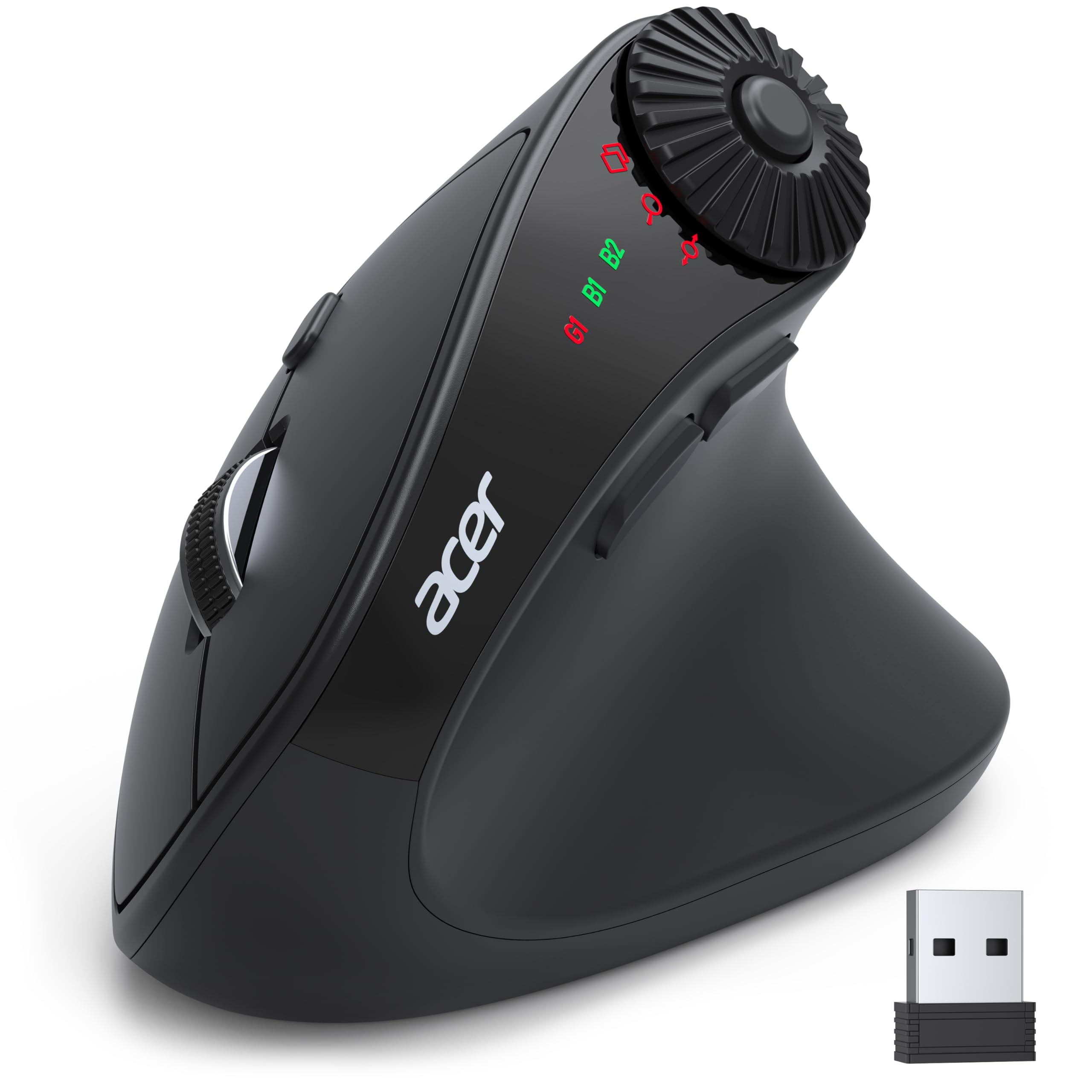
Eight buttons and a 59-degree tilt packed into a featherweight 3-ounce body.
The 59-degree vertical tilt aims your hand into a natural handshake posture. At just 87 grams (3 ounces), it is the lightest ergonomic mouse in this roundup. Four adjustable DPI levels (1200/2400/3200/4000) give you fast cursor control for design tasks.
One reviewer with carpal tunnel calls it “a perfect ergo mouse” that works well for both long work sessions and light gaming, praising the easy Bluetooth switching between two devices. Another buyer appreciates that it works with both Windows and Mac and finds the scroll wheel “very responsive.”
The big caveat: this mouse is NOT rechargeable — it uses AAA batteries that are not included. That means ongoing battery cost and waste, unlike the rechargeable ProtoArc above. The Acer also comes with a size warning: it is built for small to medium hands (the manufacturer boldfaces that in the listing), and one buyer notes it is “too large for small hands” while another finds it “better for medium/larger hands” — confusing guidance that means you should measure carefully. The star rating is 4.3 across 536 reviews, with a handful of owners reporting connection drops after 5 seconds of inactivity.
Side scroll button: A strong candidate if you love having extra shortcut buttons and prefer replaceable batteries over built-in rechargeables. Not ideal if you want a rechargeable mouse or have very small hands.
Spreadsheet work: you want the most programmable buttons for your dollar and do not mind buying AAAs.
Gaming use: you prefer a rechargeable battery or your hands fall on either extreme of the size spectrum.
4. TECKNET Pro Wireless Trackball Mouse
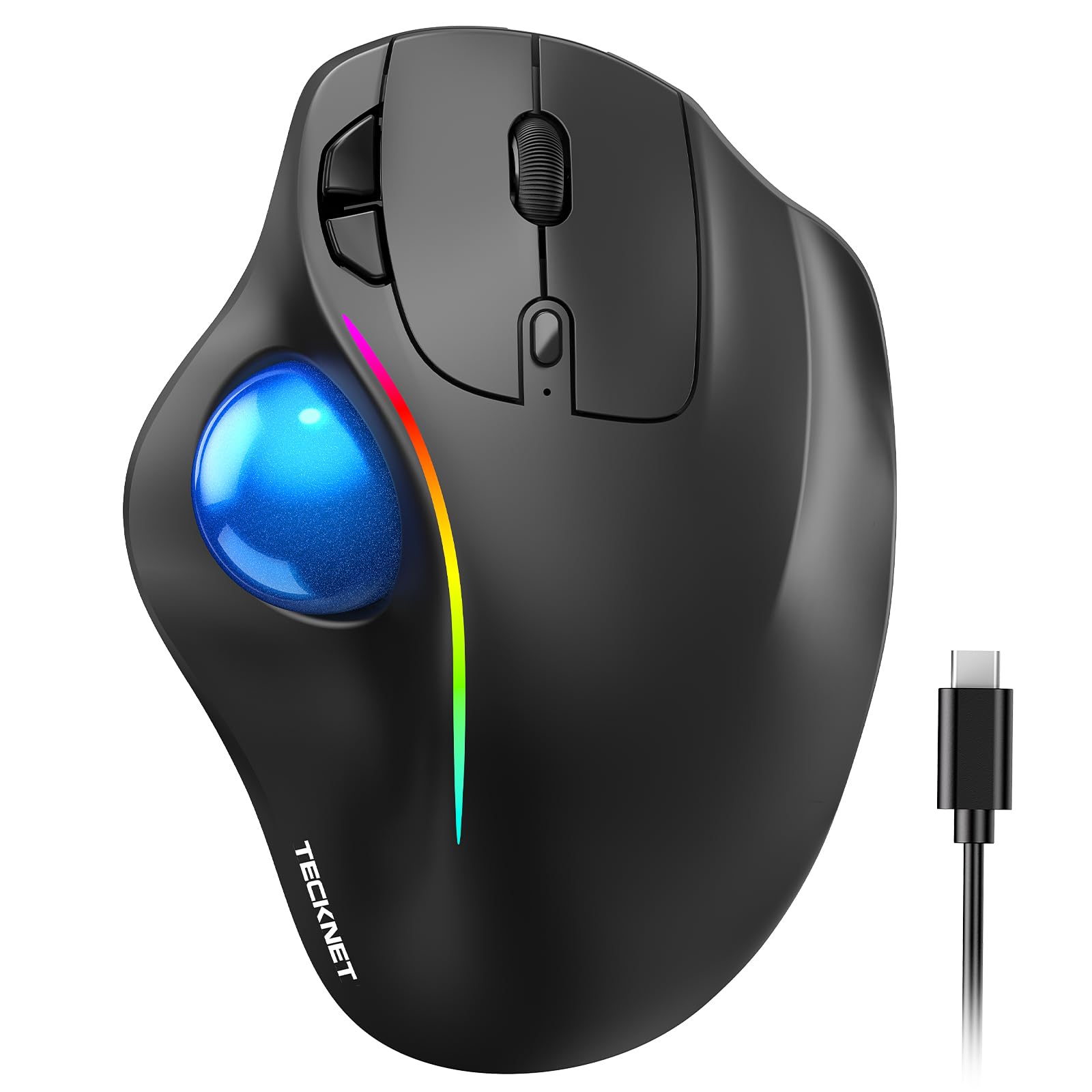
A trackball that keeps your wrist still and your arm relaxed, even on the messiest desk.
The thumb-operated trackball (a ball you roll with your thumb to move the cursor) eliminates the need to slide your arm across the desk. A 16-degree vertical angle promotes better forearm posture. The 500mAh rechargeable battery charges fast: the maker says just 15 minutes powers a full day of use. Five DPI levels (100-200-400-800-1200) let you dial in the trackball sensitivity from slow and precise to snappy.
Owners rate reliability higher than any other aspect — 860 positive mentions, the top count in the entire list — and quality gets 675. One buyer calls it “very durable” with “long battery life” that reduces hand cramp, noting it outperforms pricier mice. Another user says the trackball is “smooth,” the scroll wheel works well, and the build survived multiple drops. At 4.4 stars across 6,260 ratings, it has the second-highest review volume in the roundup. The multi-device switching (BT1+BT2+2.4G) covers up to 3 devices, with a lag-free signal up to 34 feet.
The downside: this is designed for medium to large hands (5.5 × 4.1 × 2 inches), so smaller-handed users may find it bulky. The DPI range tops out at 1200 — lower than most standard mice — because trackballs need less sensitivity by design, but it is something to note if you game. Some owners mention the scroll wheel becomes erratic after about a year of heavy use.
Thumb-operated ball
- Thumb trackball keeps your arm completely stationary
- 16° angle promotes better forearm posture
- 15-minute quick charge gives a full work day
Stiff buttons
- Designed for larger hands — smaller users may struggle
- Some scroll wheel durability complaints after one year
Small desks: anyone who works in a tight space or wants to stop moving their arm entirely.
Precision tasks: small-handed users or those who need very high DPI for precision graphics work.
5. Nulea M501 Wireless Trackball Mouse

The trackball with over 12,000 ratings that owners say is as good as far pricier brands.
The M501 uses a thumb-operated trackball so you can work from a couch, bed, or cramped desk without needing a flat surface. The smooth ball provides precise cursor movement on almost any surface — one reviewer calls it “more accurate and comfortable than any previous trackball” and says the included comfort wedge is a standout. The rechargeable battery lasts weeks, and owners praise the Bluetooth connectivity that saves a USB port. At 4.4 stars across 12,539 ratings, this is the most-reviewed product in the shortlist by a wide margin.
Reliability is the top positive aspect (740 mentions), followed by quality (590) and ergonomics (401). A buyer who switched from an M570 (a Logitech trackball) says the Nulea feels “just as good” as the Logitech version at a much lower price point. Another owner notes the built-in rechargeable battery means no more buying AAAs, and the ball stays in place even if you drop the mouse. You can connect to up to 3 devices via Bluetooth or USB dongle and switch with a button on the bottom.
The honest catch: durability gets 507 negative mentions — the only aspect the data marks as NEGATIVE. Some customers note the mouse dying after a year or so, though many still repurchase because the comfort and price are so good. The size is also large (5.51 x 4.37 inches), and a buyer with small hands says it causes hand fatigue after heavy use. The buttons are not programmable, which may disappoint power users who loved the customization on the Logitech MX Master 3S.
Budget trackball: The most popular trackball choice for good reason — excellent ergonomics and accuracy at a fair price. Just know that long-term durability is a roll of the dice.
6. ProtoArc EM05 Vertical Trackball Mouse

Combines the steepest vertical tilt (62°) with a trackball so you get two ergonomic benefits in one.
That angle, paired with a thumb-operated trackball, is designed to keep your forearm relaxed and your wrist completely still. You get triple connection modes (2.4G + BT 5.1 + BT 3.0) so you can control 3 devices at once, switching with one button. Five DPI levels (200/400/800/1200/1600) let you adjust trackball sensitivity.
Reviewers point out that the vertical trackball relieves shoulder strain effectively. One reviewer calls it a “fantastic choice” that delivers crisp, quiet buttons with a smooth ball, and notes it costs about half the price of competing Logitech models. Another says it is the “best trackball in 20 years” for angle, button placement, and thumb control. The 7 buttons are all non-programmable, and the back/forward buttons do not work with Mac OS, which is a notable limitation for Mac users.
The trackball itself is on the small side — one buyer says it is too small for comfortable use — and requires periodic cleaning of the three rollers inside to stay smooth. The device switch button is not reachable with your finger during use, so you have to lift the mouse to change devices. At 4.3 stars across 435 ratings, it has the smallest sample size here, meaning the rating is less established than the heavier-reviewed picks.
Vertical trackball: The most radical ergonomic design — ideal if you want to try a trackball with maximum wrist angle but do not mind a few quirks and an adjustment period of one to two weeks.
7. Logitech MX Ergo S Advanced Wireless Trackball Mouse

The 20-degree tilt trackball certified by ergonomists with quiet clicks.
The MX Ergo S features a 20-degree tilt that is certified by ergonomists for comfort. The thumb-operated trackball lets you switch between speed and high-precision tracking at the tap of a button. The battery lasts up to 120 days on a full charge, and a 1-minute charge gives you 24 hours of use.
Quality is the top praise from owners (94 positive mentions), followed by comfort (59) and ergonomics (59). One reviewer who used the mouse daily for 10 months says it “significantly reduces wrist and shoulder strain” and prefers it over any traditional mouse. Another owner calls it the “best trackball mouse out there,” noting the multi-PC switching is convenient and the easy cleaning restores smoothness. The 6 buttons are fully customizable through Logi Options+ app with Smart Actions, giving you deep workflow control.
The premium price brings some reasonable concerns: the silicone coating attracts dust and may wear to shiny plastic over time. The Logitech does not include a USB-C cable in the box, and there is no dongle storage slot built into the mouse. Some shoppers say the mouse stops responding after extended use, though that is a minority experience given the 4.5-star rating across 764 reviews. The MX Ergo S has fewer total ratings than the budget TECKNET (764 vs. 6,260), but it holds a higher score at 4.5 vs. 4.4.
Adjustable tilt: The most refined trackball experience with proven ergonomic certification and deep customization. worth the money if you spend all day at a computer and want the smoothest thumb control available.
Understanding the Specs
DPI (Dots Per Inch)
This measures how fast your cursor moves across the screen for every inch you move the mouse (or roll the trackball). A higher DPI means the cursor zips across the screen with less physical movement. For standard mice, 800-1600 DPI is typical for office work, 2400+ for precise design tasks. Trackball mice often use lower DPI ranges (like 100-1200) because the thumb has finer motor control than the whole arm. If you work on high-resolution displays (4K or above), look for at least 2400 DPI so you are not dragging your arm across the desk to reach the far corner.
Vertical Tilt Angle
This is the angle at which the mouse rotates your hand from flat to a handshake position. A tilt around 20 degrees is mild — it helps a bit but keeps the mouse closer to a traditional shape. Tilts of 55 to 62 degrees are true vertical designs that keep your forearm bones uncrossed, which can reduce strain on the carpal tunnel (the narrow passage in your wrist). There is a trade-off: steeper angles usually require a longer adjustment period (often 1-2 weeks) while your muscles adapt. Any model claiming to be “vertical” at under 15 degrees is mostly marketing.
FAQ
How long does it take to adjust to a vertical mouse?
Can a trackball mouse replace a standard mouse for gaming?
Which is better for carpal tunnel — vertical or trackball?
Will a vertical mouse fit my hand size?
How often do I need to clean a trackball mouse?
Are rechargeable ergonomic mice better than battery-powered ones?
Can I use an ergonomic mouse with a Mac?
What does “multi-device” mean for a mouse?
Is a higher DPI always better?
Do vertical mice work on glass desks?
Final Thoughts: The Verdict
If you want one dependable pick, the best wireless ergonomic mouse winner is the Logitech MX Master 3S because it combines the highest star rating (4.6) with class-leading surface tracking, quiet clicks, and deep customization through the Logi Options+ app. If you want the best value vertical option that thousands of owners swear by for wrist relief, grab the ProtoArc EM11 NL. And for a trackball that keeps your arm completely still and has the highest review volume in the roundup at 12,539 ratings, the Nulea M501 is the one to reach for — just keep an eye on long-term durability.
How We Picked
We do not accept paid placement. Every pick is matched to a real buyer and a real use-case; we do not hands-on test units.
Sources & Methodology
Specifications: manufacturer listings and product documentation. Review insights: verified customer reviews, as of July 2026. Pricing: not shown on this page (it changes often); check the current price via the retailer link.
As an Amazon Associate, Calories Fit earns from qualifying purchases. This does not affect which products we feature.